

Installation Guide
FIRE TV STICK
How to Install IPTV Smarters Pro on Fire TV Stick
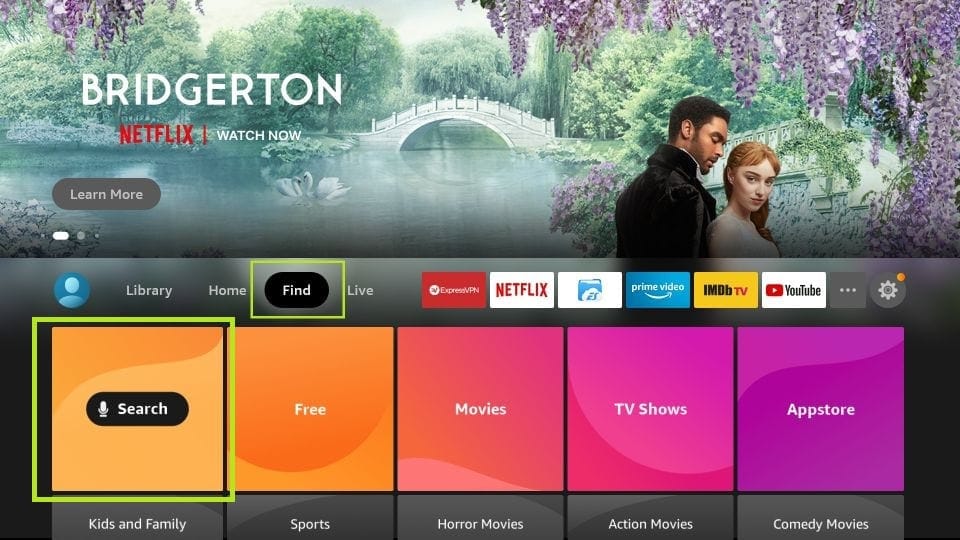
Starting from your device’s home screen, go to the Find section.
- Begin by installing the Downloader app.
This app is necessary for sideloading IPTV Smarters onto your FireStick, as direct downloads via browser aren’t possible.
- On the FireStick home screen, select Find, then Search.
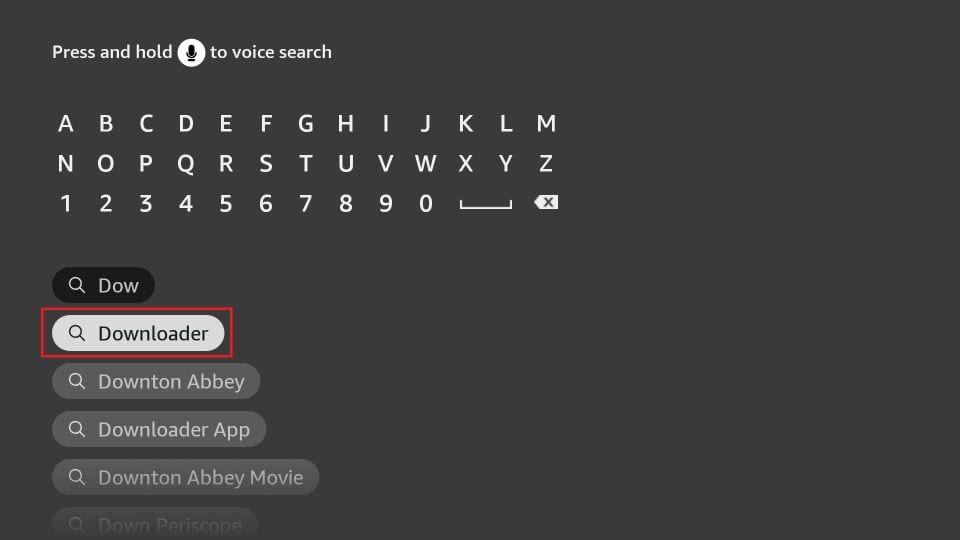
- Enter “Downloader” as the search term. When Downloader appears in the search results, select it. On the next screen, click the Downloader icon to download and install the app.
- After the Downloader app is installed, return to your FireStick home screen.
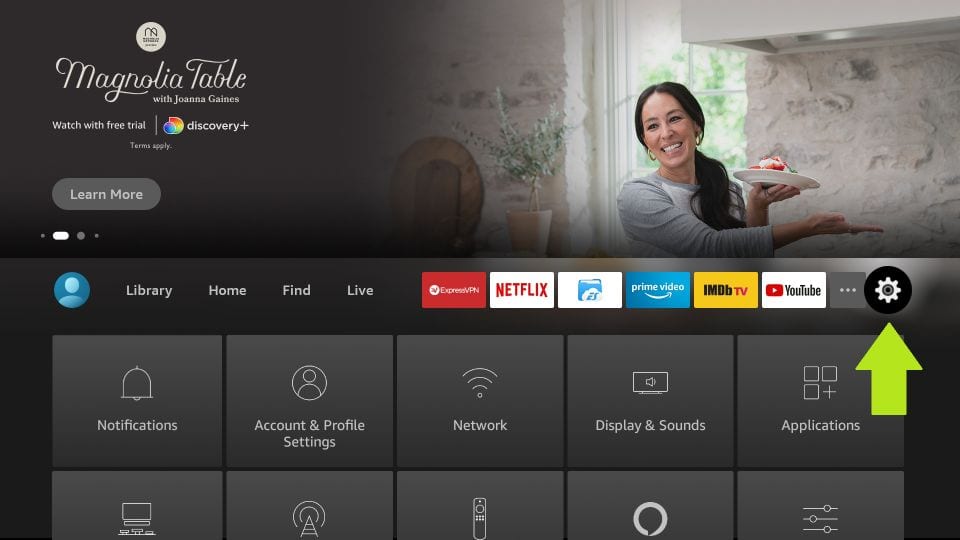
Navigate to the menu bar and select Settings.
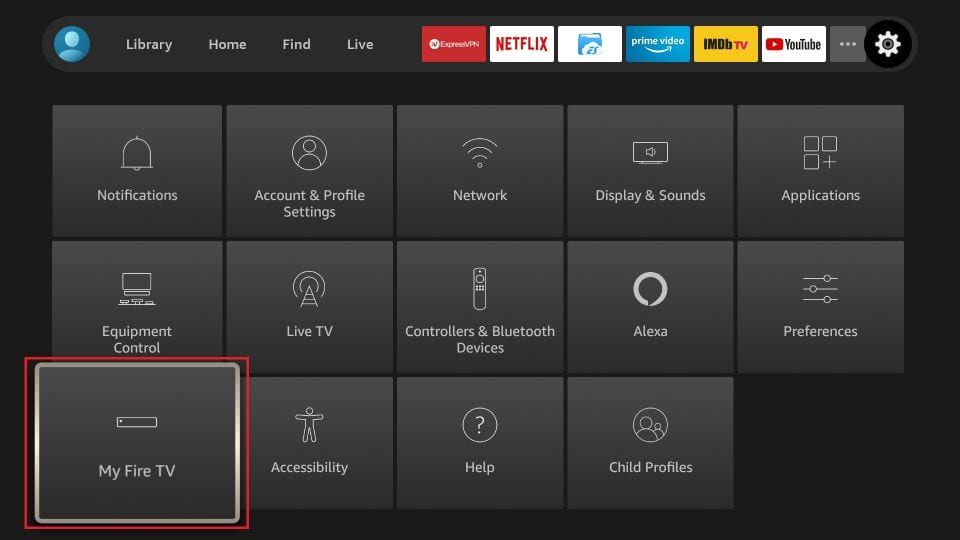
- In the Settings menu, choose My Fire TV.
- When the new set of options appears, select Developer Options.
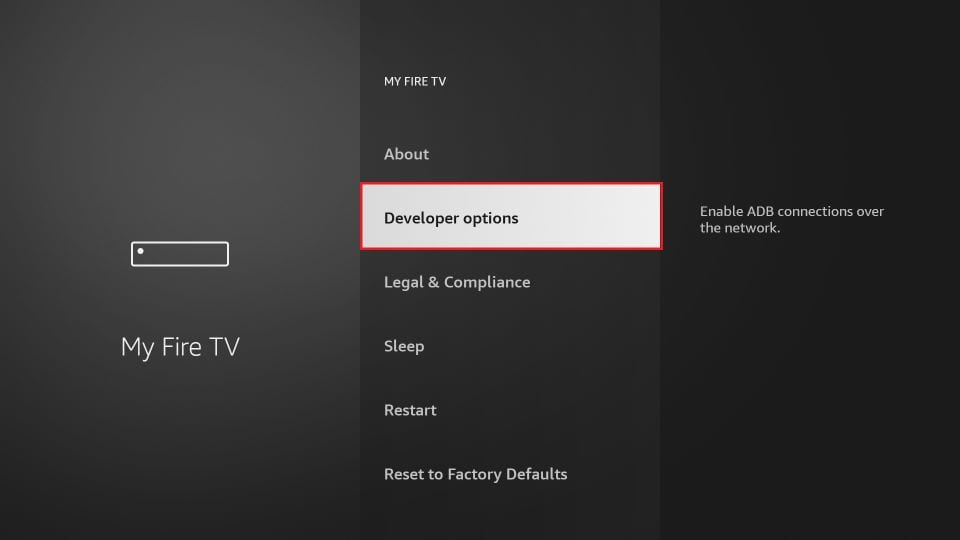
- Click on Install from unknown apps.
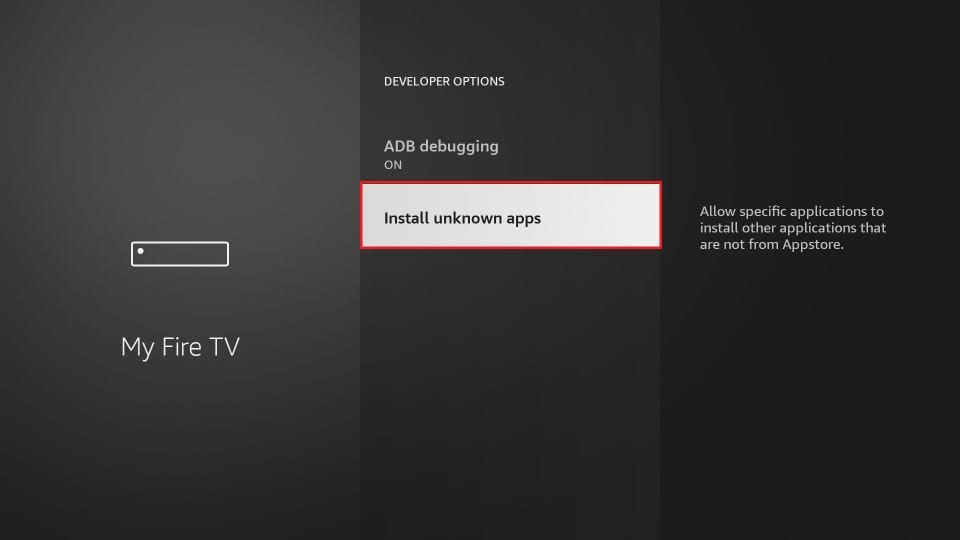
- Set Downloader to ON.
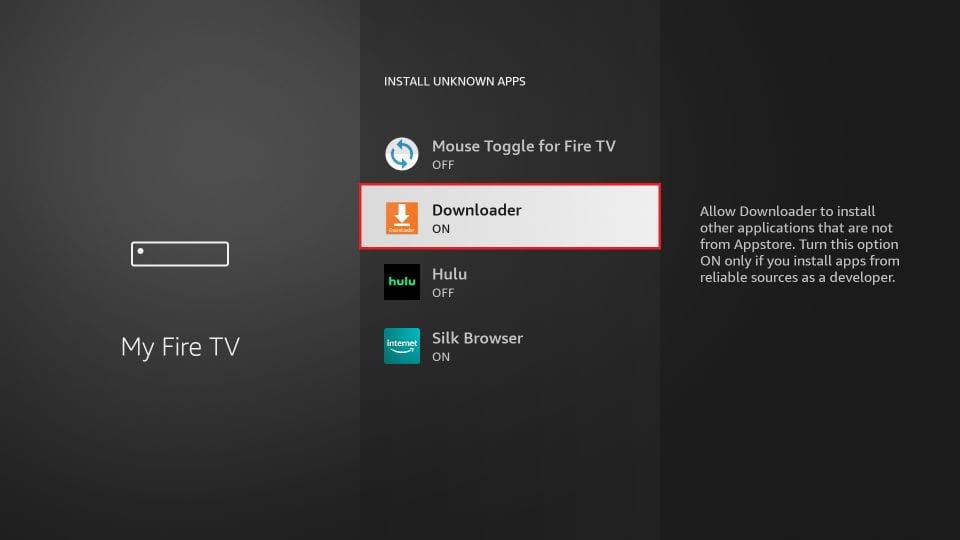
Now your FireStick is ready to install IPTV Smarters and other apps from outside the Amazon store. Continue with these steps:
- Open the Downloader app. The first time you use it, you’ll see a few pop-ups—dismiss these until you reach the main screen.
On this screen, select the URL box on the right (Home should be selected in the left menu), where it says ‘http://’.
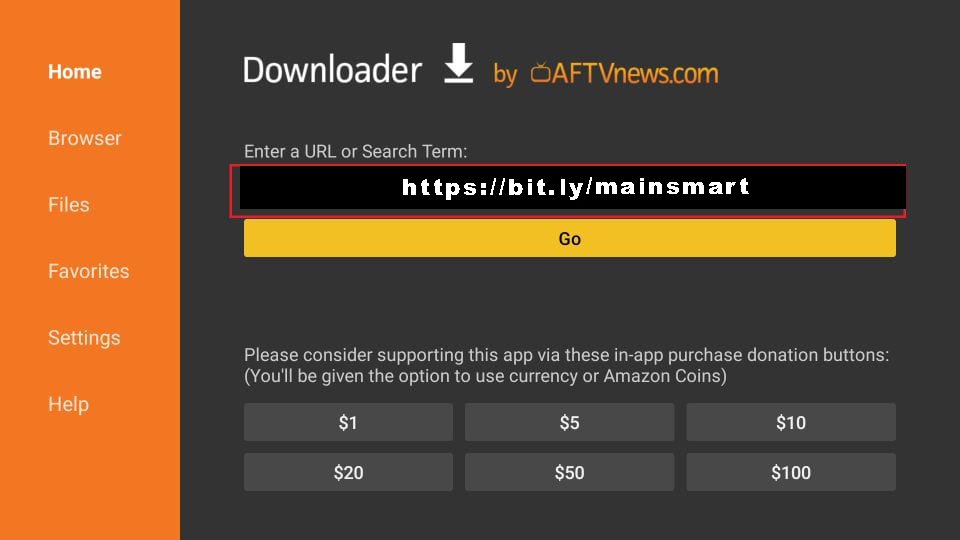
- Type in the following URL: https://bit.ly/mainsmart
Click GO.
- Wait a moment for IPTV Smarters to download onto your FireStick.
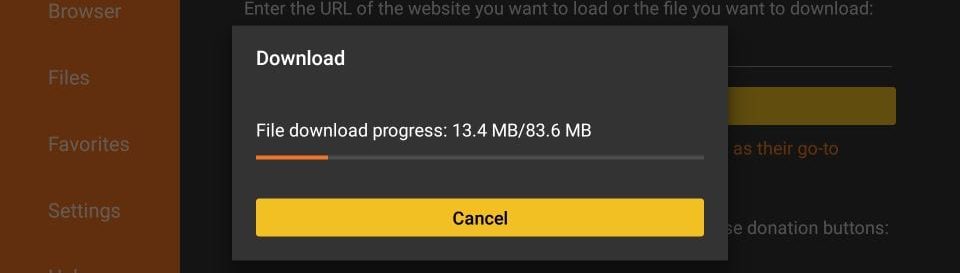
- Once the download is complete, Downloader will automatically prompt you to install the APK file.
Click Install to finish the process.
Set IPTV
How to setup IPTV on Smart TVs with Set IPTV app
You can install Set IPTV directly from your TV’s app store on Samsung, LG, and other compatible brands.
Once the installation is complete, launch Set IPTV. The MAC address will be displayed on your screen.
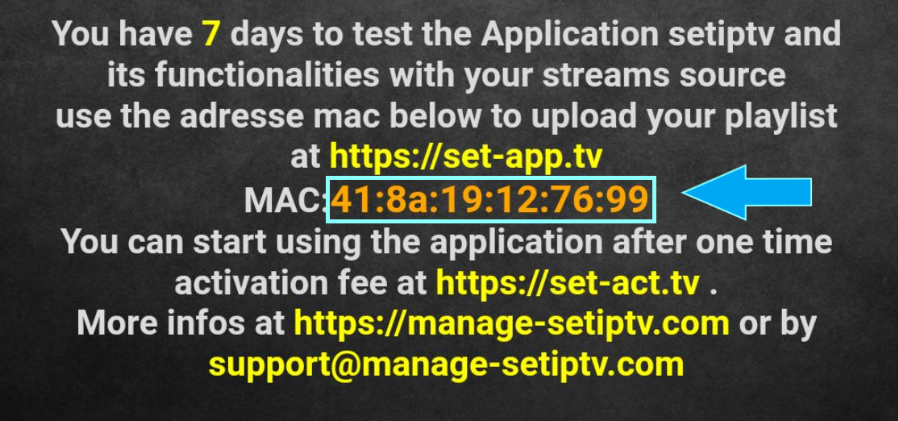
Next, go to the SET IPTV web portal. Access the Set IPTV upload page in your browser at https://cms.manage-setiptv.com/set.app and select the Playlist Link option:
Enter your MAC address
Type the MAC address shown on your TV into the TV MAC field.Enter your M3U link
Paste the M3U link provided by your IPTV provider into the M3U URL field.Complete the Captcha
Check the box to verify you’re not a robot.Click Send
Click the send button. Then, restart your TV and open Set IPTV again to access thousands of TV channels, movies, and series.

Samsung Smart TV
Step 1: Press the Smart Hub button on your remote control.
Step 2: Find and install the IPTV Smarters Pro app.
Step 3: Sign in to the app using your subscription information, including your username, password, and Portal URL.
Flix IPTV
How to Install the FLIXIPTV App on Smart TVs (Samsung/LG)
FLIX IPTV: Installation and Setup Guide
Flix IPTV is a reliable IPTV player, similar to Smart IPTV, but offers greater stability for streaming content. Please note that the app does not provide any content itself; you’ll need to use your own playlist or m3u link from an IPTV subscription.
Flix IPTV stands out as a robust and efficient app, even when handling large playlists, making it a great choice for your Smart TV.
Explore our IPTV services.
LG Smart TV
Step 1: Press the Home button on your remote and navigate to the LG Content Store.
Step 2: Look for IPTV Smarters Pro and install the app.
Step 3: Open the application and log in using your subscription credentials, such as your Username, Password, and Portal URL.
Android/IOS
Step 1: Visit https://www.iptvsmarters.com and select APK for the Android version or IOS/MacOS for the iOS version.
Step 2: Once the installation is complete, tap Open to start the IPTV app.
Step 3: Select the option to log in using Xtream Codes API.
Step 4: Enter any name you like, along with the Username, Password, and URL provided by us.
Step 5: Allow the app to load all the channels. You’re now ready to watch your favorite channels with family and friends.
MAG
This guide will walk you through the straightforward steps to install your MAG device (models 250/254/256, etc.).
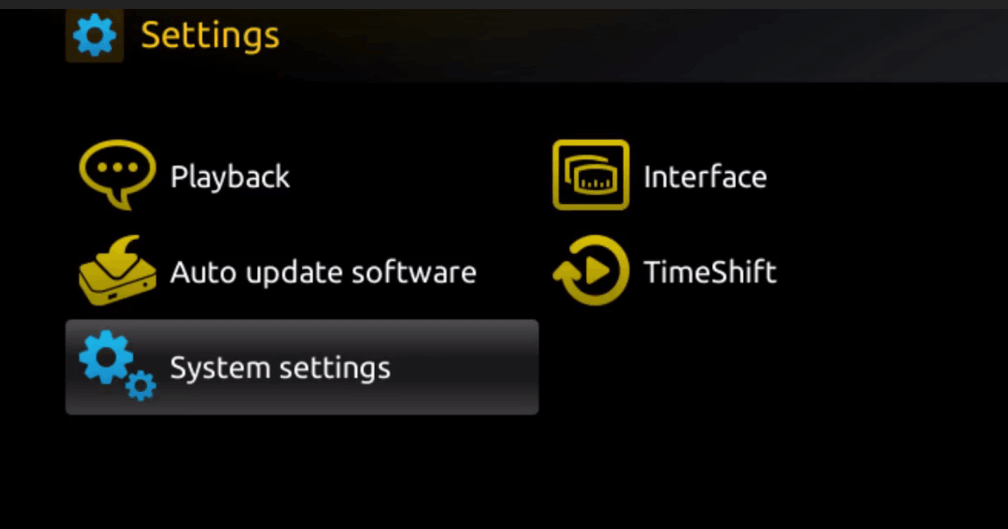
Step 1: When your box powers on, the main portal screen will appear. From here, select “Settings” and press the “SETUP/SET” button on your remote.
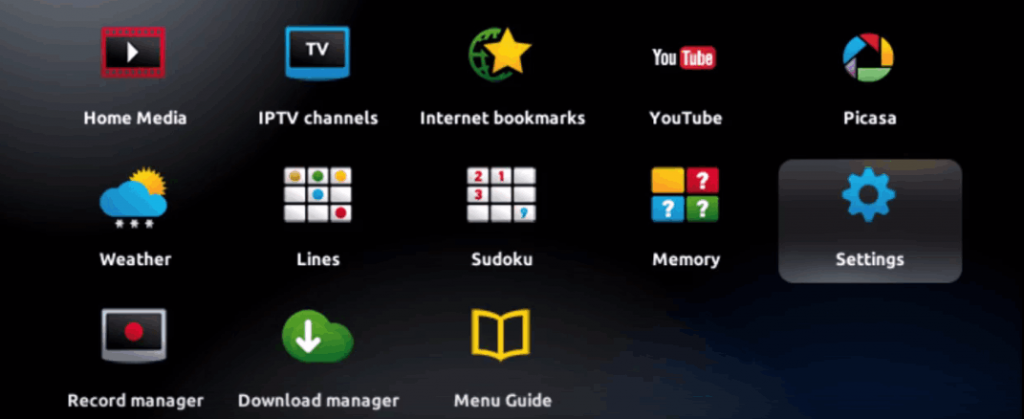
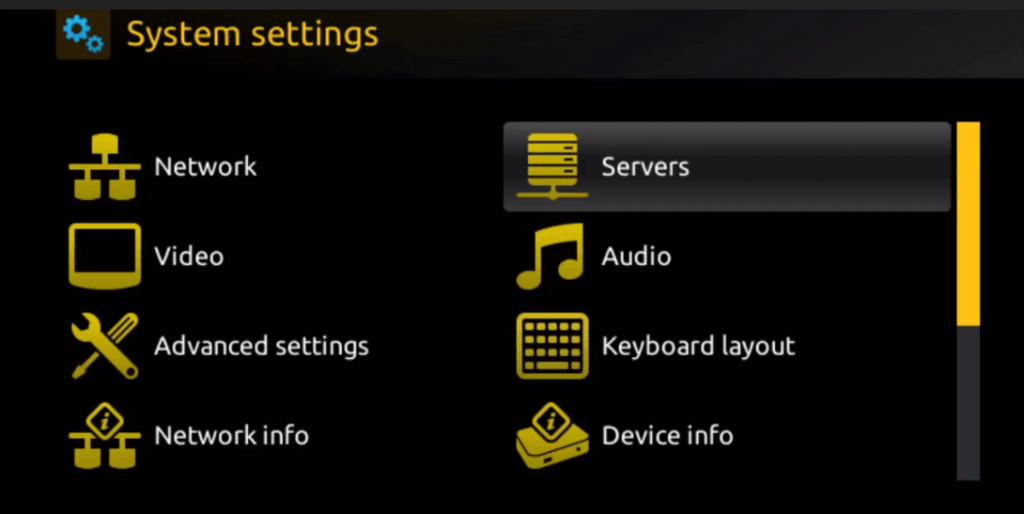
Step 2: Next, go to “System settings” and select “Servers.”
Step 3: Click on “Servers” again.
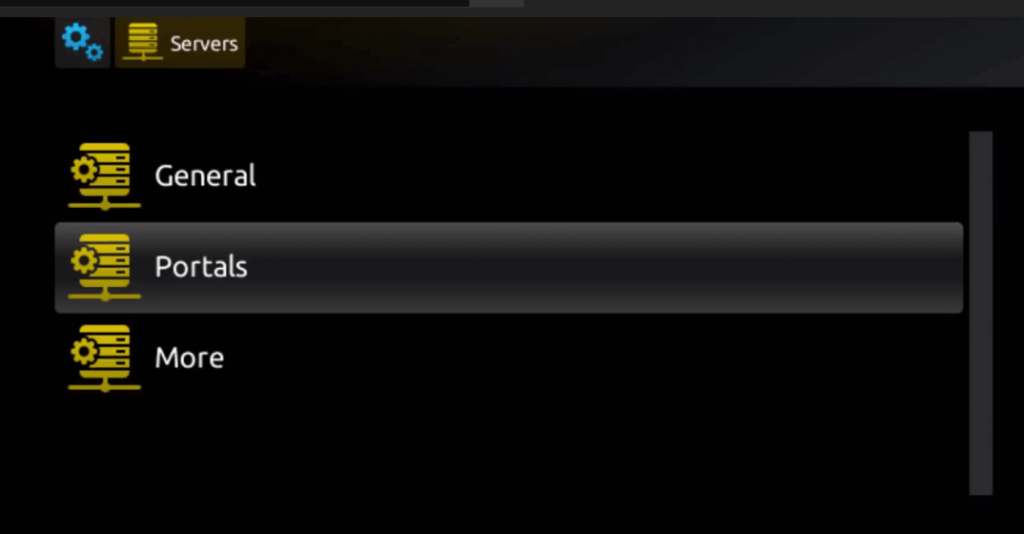
Step 4: Select the “Portals” option.
Step 5: Enter a name for the portal in the ‘Portal 1 name’ field, and input the portal URL in the ‘Portal 1 URL’ field.
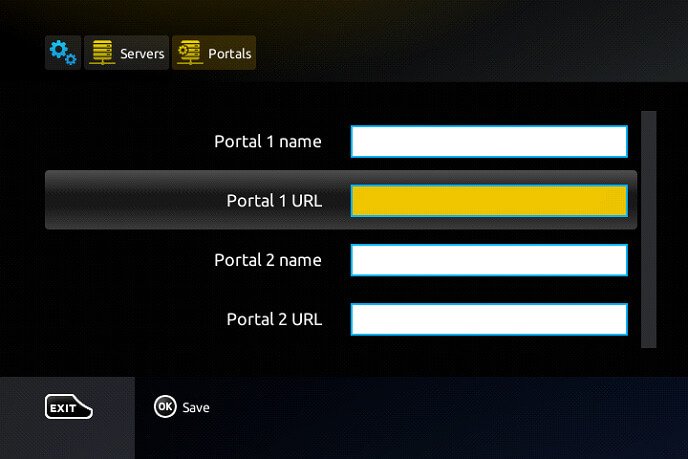
To activate your IPTV subscription on the MAG box, please provide us with the MAC address located on the label at the back of your device when placing your order. Activation is handled remotely; once it’s complete, we’ll send you a URL link that you’ll need to enter in the PORTAL section, as shown in the example below.
Step 6: After entering the information, select and press ‘OK’ to save your changes.
Step 7: Press ‘EXIT’ on your remote once your settings are saved.
Step 8: Finally, reboot your MAG box. Confirm by selecting ‘OK’ so the changes take effect.
ENIGMA2
Step 1: For Enigma 2/Linux installation, you’ll need to install Putty.
Step 2: On your device, navigate to Settings > Setup > System Network Device > Setup Adapter > Settings.
Step 3: Locate your device’s IP address—it will begin with 192.168…
Step 4: On your Windows PC, download and install the Putty software.
Step 5: Launch Putty.
Step 6: Enter the IP address of your device.
Step 7: Set the port to 23.
Step 8: Click “Open” to connect.
Step 9: When prompted, use “root” as both the default username and password.
Step 10: Copy the command line you receive after subscribing (it will look like: wget -O /etc/enigma2/iptv.sh “your m3u link” && chmod 777 /etc/enigma2/iptv.sh && /etc/enigma2/iptv.sh) and paste it into Putty.
Step 11: Right-click your mouse to paste, then press ENTER.
Step 12: Type “reboot” to restart your device and complete the setup.
WINDOWS
Step 1: Open the Microsoft Store.
Step 2: Type “MyIPTV Player” into the search bar.

Step 3: Locate MyIPTV Player in the search results and select it.
Step 4: Click the “Get” button to download and install the app.

Step 5: Once installation is complete, click “Launch” to start MyIPTV Player.

Step 6: The application will open on your device.
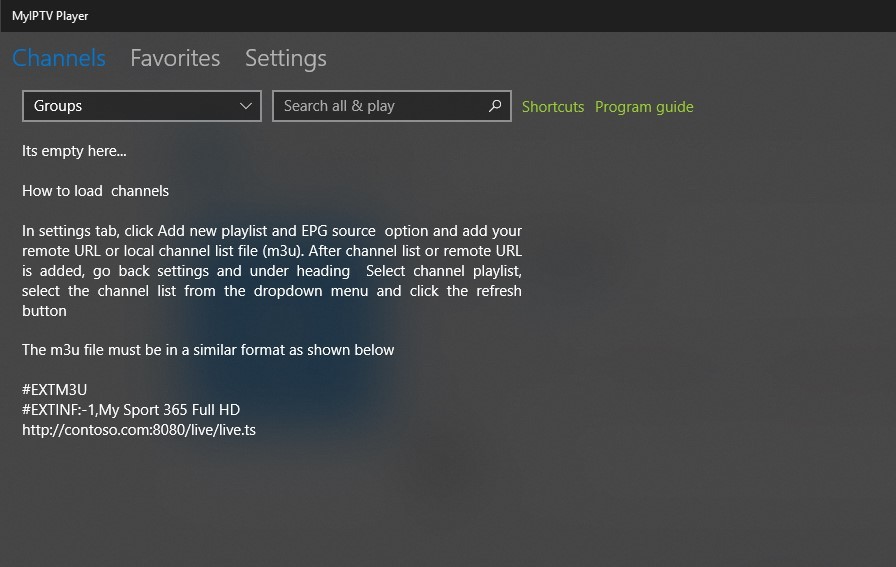
Step 7: Go to the “Settings” tab within the app.
Step 8: Select “Add new playlist and EPG source” to input your playlist.

Step 9: Provide a name for your playlist, click “Select File” to choose your playlist file, then click “Add Local List” to upload it.

Step 10: Return to the settings page, find “Select Playlist Channel,” choose your playlist, and click “Refresh.”

Step 11: Click the “Channel” tab at the top of the screen.
The channel list will now appear. Select the channel you want to watch and enjoy streaming with MyIPTV Player.
Supported devices for MyIPTV Player include:
- Windows
- Xbox One
- Hololens
- Windows Phones
Macbook
Mac Method:
To download the IPTV Smarters app for Mac, visit the following URL: https://www.iptvsmarters.com/download/?download=mac
Xbox 360 & One
How to Install MyIPTV Player on Xbox One & Xbox 360
MyIPTV Player is one of the top IPTV player apps available in the Microsoft Store.
Open the Microsoft Store on your Xbox One or Xbox 360.
Go to the Search tab.
Type “IPTV” and click the Search icon.
A list of IPTV apps for Xbox will appear.

Select MyIPTV Player from the list.
Click the Install button in the Microsoft Store to download the app.
- The app will be installed on your device.
Once installed, open MyIPTV Player on your Xbox One or Xbox 360.
Go to the Settings menu in the app.
Find and select “Add new playlist and EPG source.”
In the Remote Channels section, enter a name for your playlist.
Enter the M3U URL provided by your IPTV provider and click “Add remote list.”
To add the EPG source, go to the Program Guide (EPG) section, fill in the playlist name, enter your provider’s EPG source link, and click “Add EPG Source.”
In Settings, select “Select Playlist” under the “Select channel playlist” heading.
Choose the playlist name you just added.
Similarly, select the EPG Source link under the EPG Source section.
In Channel and EPG Settings, enable the following options:
- Refresh the remote channel list on the app
- Download EPG when no data is available
- Enable Channel and EPG Settings
Return to the home page and click on the Channels tab.
All the IPTV content from your provider will now be available for you to watch.